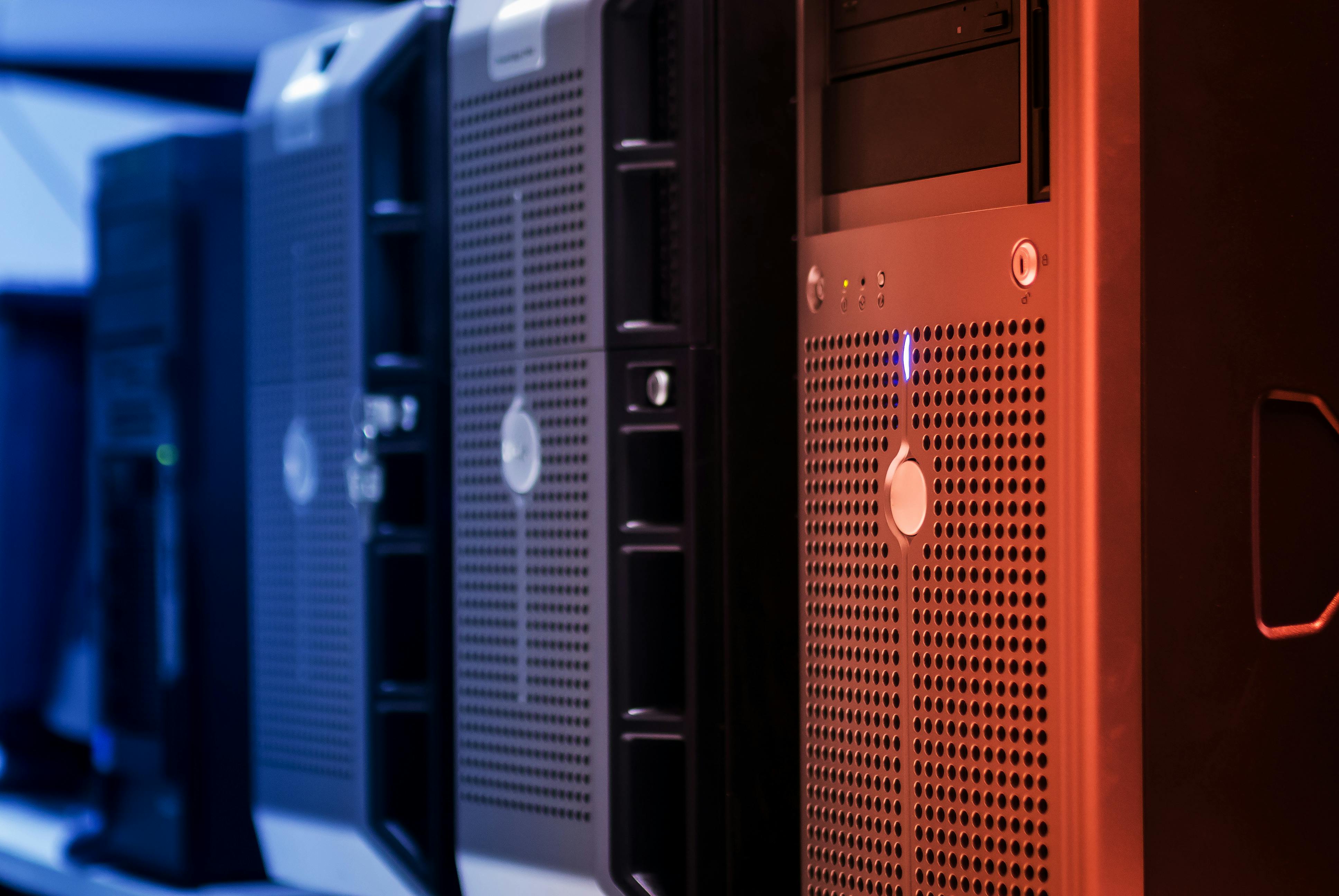

A server in a small or medium-sized company is bought once every 5-7 years - for the entire period it will work for accounting, warehouse, production, or reception. In our IT support for SMB clients, we regularly see the same purchasing pattern: the owner gets one quote from a vendor, sees 1U rack, 32 GB RAM, 2x SSD in the table, decides it looks OK and signs. Two years later it turns out that the drives installed in the array are consumer SSDs without PLP, that there is only one power supply, that remote management boils down to TeamViewer on a logged-in machine, and that issuing the sixtieth invoice per day in enova starts taking several seconds instead of a fraction of a second. This time something has to be done about it - and that is when the call comes to us or to another IT outsourcing provider.
This article is about how to avoid falling into that pattern. We go step by step through the parameters that really determine whether a server will carry the workload for the next five years: the number of sockets and CPU frequency, RAM type and capacity, disks (SSD, HDD, SATA, SAS, NVMe), the RAID controller, power supply redundancy, the network card, remote management iLO/iDRAC, and the manufacturer warranty. At the end, we show which companies are a sensible fit for HPE MicroServer and when it is better to choose HPE ProLiant DL20 - two models we most often buy for clients when a branch office or small company does not need a full rackmount server of DL360 class.
We focus on hardware. We have already written about how to build infrastructure for enova365 - SQL Server, RDS and backups and what you need to know about maintaining Comarch Optima - those texts show how the system and database layers affect the choice of machine. Here we go one level lower, down to the metal.
What are the real use cases for a server in SMB
Before you choose the CPU and disks, determine what the machine is supposed to do. It sounds obvious, but 80% of server selection mistakes for SMBs come from skipping this step. A full inventory of workloads can be a good starting point for a discussion about IT support.
In practice, SMBs break down for us into three profiles that differ in server load:
Micro business and small office (5-15 people) - most often a branch, accounting office, or law firm. File server, AD, local backup, sometimes accounting software with a local database.
Small company (15-50 people) - this is where ERP with SQL Server, RDS for part of the staff, integrations, and the first serious backup requirements come in (RPO/RTO measured in hours, not days).
Medium-sized company (50-150 people) - several VMs, ERP with a database growing faster than we would like, WMS, sometimes MES, RDS for 20+ users, a separate backup host.
These ranges are an orientation point, not a rigid split. In reality, we know 12-person design offices with CAD suites that need infrastructure closer to a medium-sized company, and 80-person sales companies that are fine with a small-company setup because the real server load comes from six accounting employees. The number of people in the company is an approximation - the real information is the workload profile.
Below is a map of typical services. In the following sections, we show how each one affects parameter selection.
File server. The backbone of most companies. Dozens of gigabytes of accounting documents, CAD projects, contract archives, scans. It needs space and decent network throughput, but the CPU is rarely the bottleneck.
Active Directory, RADIUS, Wi-Fi controller. Infrastructure services - domain logon, 802.1X authentication, management of Aruba or Ubiquiti access points. Individually they consume only a fraction of resources, but they are critical - if the domain controller stops working, users will not be able to log in to their workstations. Usually these services run as virtual machines on the same host as the other components.
ERP - enova365, Comarch Optima, Symfonia, Subiekt. This is where lightweight infrastructure ends and real load begins - Microsoft SQL Server underneath the production database, terminal client (RDS) for remote employees, a database that grows by 1-2 GB per month. We wrote about this in more detail in the enova365 article - that is where the whole RDS and SQL Express vs Standard mechanics are described.
SQL for Płatnik. Płatnik is typically a tool for the accounting department or an accounting office, using local SQL Express as a complement to the payroll and HR program. In a micro business it sits next to the accountant, on her workstation or on a small file server. In a larger organization it is sometimes installed on a dedicated SQL instance and then shares resources with other databases.
Warehouse systems and WMS. Subiekt with WMS, a separate SQL-based WMS, ERP integrations, barcode readers. Here the requirement for low latency appears - scanning a pallet cannot wait 4 seconds, because the warehouse worker will throw the scanner away.
Production support applications. MES, scheduling, machine time tracking, PLC integrations. Often with a SQL database, sometimes with services listening 24/7. Failure of such a server means line stoppage.
Backup, monitoring, antivirus. Veeam, Acronis, ESET, Wazuh - services everyone treats as secondary until a database has to be restored at 11 PM on Friday.
This set is typical for a company with 30-150 employees. In a micro business, production and WMS drop out; in a larger one, BI, data warehouse, and separate development environments are added. Your list determines what kind of server you need - and whether one server is enough at all.
CPU - 1 or 2 sockets, frequency, soldered processor
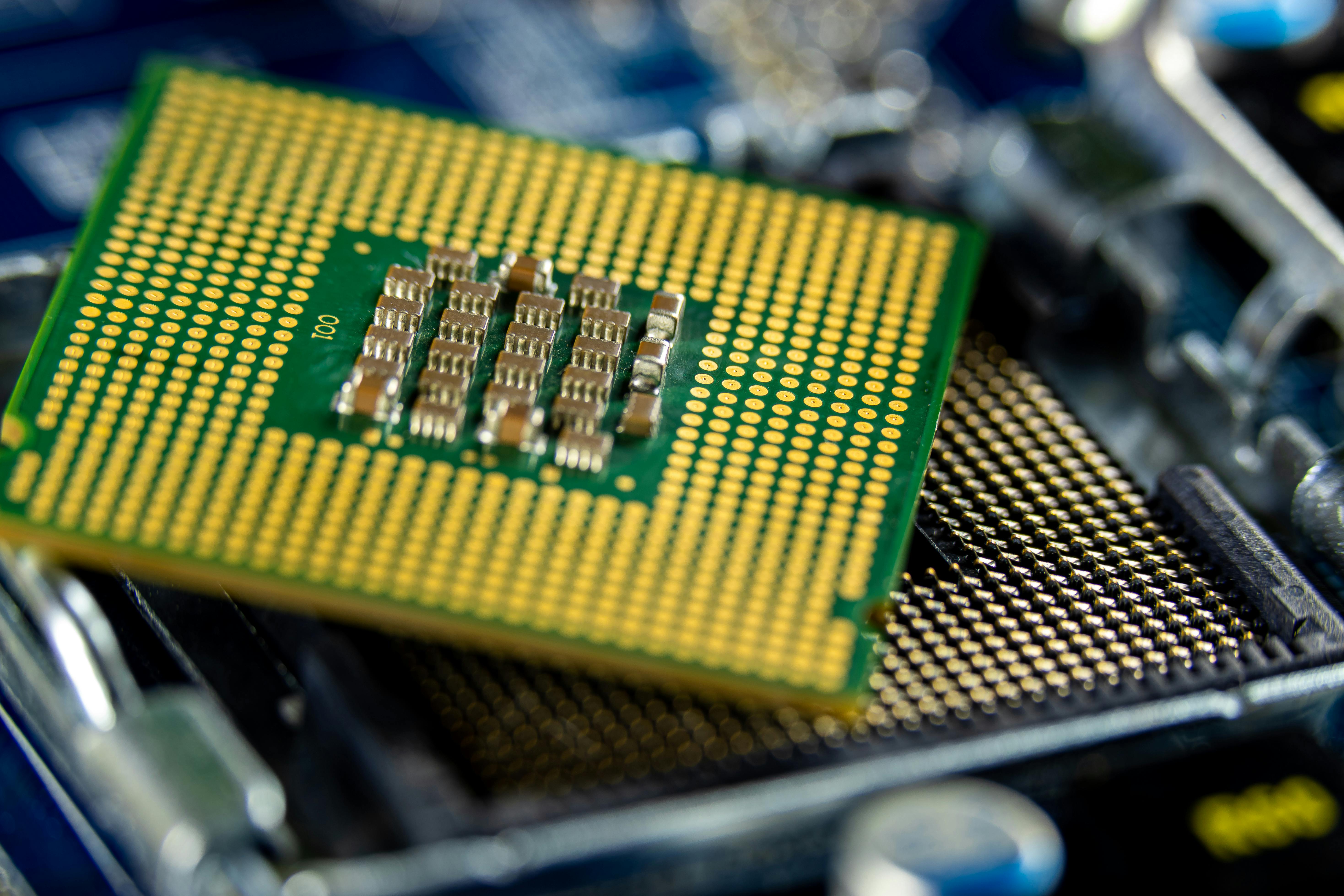
Most SMBs we work with do not need a dual-socket server. One modern Intel Xeon Scalable 4th or 5th generation unit, or Xeon E-2400, handles tasks that required two processors 10 years ago. The second socket adds platform cost, licensing cost (Windows Server, SQL Server licensed per core), and power draw, usually without proportional performance benefit for the workloads typical in SMBs.
When does a dual-socket setup make sense: dense virtualization (dozens of VMs), SQL databases with a very large number of parallel queries, terminal environments for 50+ employees. If your company does not meet these conditions - choose one socket.
Base frequency versus number of cores
Imagine two offers: on the left Xeon Silver 4416+ with 20 cores and 2.0 GHz base, on the right Xeon E-2486 with 6 cores and 3.5 GHz base. Similar price, Silver sounds better in the specification, more cores on paper. In most SMBs that is a trap choice - for the workloads that actually run there, the second offer will do more, even though it has three times fewer cores.
Systems such as Comarch Optima, enova365, Symfonia, or Płatnik live off high single-core clock speed, not a large core count. A single SQL query will not be split across 16 cores. It will run entirely on one - and the response time depends on how quickly that one core processes it. Buying a 6-core processor with a 3.5 GHz clock gives the accounting user a faster response when opening a report, rather than just more cores for virtualization that you do not actually have.
The second thing the salesperson will not show you in the table: licensing. Microsoft SQL Server Standard in the Per Core model is billed per core, with a minimum of 4 cores, purchased in 2-core blocks. Those 16 cores of the Xeon Silver mean 16 licenses, regardless of the fact that SQL really uses only two. A 6-core processor with a high clock - 6 licenses, the same result for the user, clearly lower licensing cost.
A practical caveat: SQL Server licensing is often more complex than how many cores your CPU has. You can license it in the Server + CAL model (sensible for small companies with a limited number of users), in virtualized environments there are rules for VMs and Software Assurance, and for virtualization licensed at the host level the inactive cores also count. Before buying, it is better to align CPU selection with the specific licensing model, ideally with a Microsoft partner - because there are cases where for a micro business with 10 users, SQL Server Standard in Server+CAL turns out cheaper than everything else, and the difference between two and six CPU cores is secondary.
Conclusion: for a typical ERP/file/AD server in SMB, choose high base frequency at the expense of core count. 6-8 cores with a 3.2-3.7 GHz base does more in real work than 16 cores with a 2.1 GHz base - and costs you less in licenses.
An exception we sometimes see: a dense terminal server for 30-50 users. Here the number of cores starts to matter, because each active user means separate processes, and the system scheduler likes having cores to distribute work across. The boundary is not sharp - for 10 RDS users we still prefer clock speed, for 40 we start weighing the trade-off. This is the moment when it is better to measure real load from the existing environment instead of relying on general rules.
Processor soldered to the board
Some cost-optimized platforms (mini towers, NAS devices configured as servers) have the CPU soldered to the board. It looks attractive from a price perspective, but it has consequences:
No upgrade path. After two years, when you need a stronger CPU, you buy a new machine.
CPU failure = replacement of the whole motherboard, which in practice means replacement of the server.
Often limited ECC RAM support or poorer memory handling.
In enterprise-class servers (HPE ProLiant, Dell PowerEdge, Lenovo ThinkSystem), the CPU sits in an LGA socket - replaceable. This is not a premium feature, it is the standard - and do not agree to give it up. We accept a soldered processor in one case - small branch machines where an upgrade path would not make sense anyway (HPE MicroServer - there the CPU is socketed, but some competing microservers already have it soldered).
RAM - ECC, capacity, channels
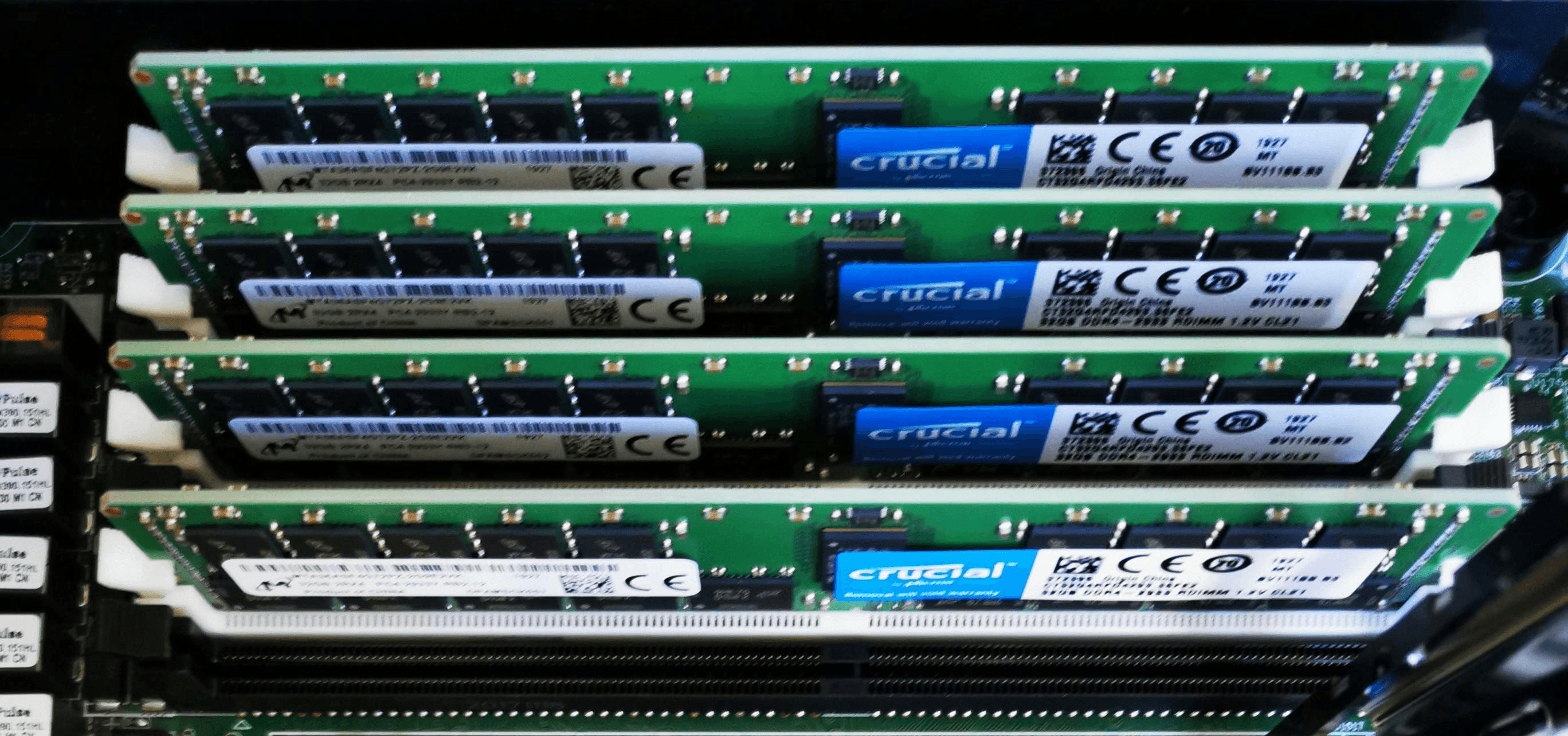
Server RAM should be ECC (Error-Correcting Code) memory. That is the foundation. ECC memory detects and corrects single-bit errors - in a server that runs 24/7, this is not a nice add-on, but a condition for reliable SQL database and hypervisor operation.
Every respectable server (HPE ProLiant DL20, DL360, MicroServer; Dell PowerEdge R250, R350, R450; Lenovo ThinkSystem ST50/ST250) requires ECC UDIMM or RDIMM modules. Never agree to just run Windows Server on desktop memory - it may start, but it will not be covered by the warranty, and the first uncorrected bit error in a SQL database can cost your IT person a week of analysis to figure out why the data in one table does not match the rest.
How much RAM
Orientation rules for a typical server in SMB:
Micro business 5-15 people, file server + AD + Płatnik: 32 GB RAM is the absolute minimum. 64 GB gives room for a second virtual machine and Veeam.
Company 20-60 people, ERP (enova365, Optima, Symfonia) with SQL database, RDS for 5-10 people, file server, AD: 64-128 GB. SQL Server in Standard, without any limit, will take as much as you give it, so plan with headroom.
Company 60-150 people, several VMs, ERP + WMS + RDS for 20+ people, separate backup and monitoring server: 128-256 GB, often with two servers in a cluster (Hyper-V, VMware).
From our deployment practice: SQL Server will by default occupy as much RAM as it is allowed to. Buffer cache, plan cache, tempdb - everything sits in memory, because access to memory is thousands of times faster than access to disk. If you give the database too little, or do not set the max server memory parameter, SQL can use all the host RAM, push the operating system into swap, and create the opposite effect from the intended one.
In a practical configuration, we set max server memory at around 80% of host memory for a machine dedicated only to SQL Server, less in an environment shared with other roles (file server, Veeam, second RDS). If there is too little RAM even after proper configuration, SQL starts constantly reaching out to the disks. Then even the fastest NVMe will not save application performance, because instead of random reads in microseconds you get cyclical streams from disk in milliseconds. Users report that the system has slowed down, the administrator sees a 100% I/O queue, while the real problem is lack of memory for the database.
When, in the IT support model, we receive a ticket saying the server is severely slowing down, the first things we check are two: whether the array is in degraded mode and how much RAM is left for the database. In practice, the second point explains most cases - either the server has too little memory, or SQL has max server memory configured incorrectly (too low and it does not use the available memory, or not set at all and it takes everything, choking the system). Disks, network, and antivirus are further suspects, but they less often turn out to be the culprit in this type of scenario.
Channels and module distribution
Modern server CPUs have 4, 6, or 8 memory channels. RAM performance depends on whether you use all channels. Two 32 GB modules in an 8-channel CPU mean you are running on 2 of 8 channels - memory throughput drops to 25% of nominal.
That is why, when planning a configuration, buy modules in a set matching the number of CPU channels if the budget allows. 8x 16 GB is faster than 2x 64 GB, even though it provides the same capacity. For SMBs, the practical compromise is: we buy 4 modules if the board has 4 slots (DL20, MicroServer), 8 modules if the board has 8 slots (DL360, R450).
Drives - SSD, HDD, SAS, SATA, NVMe
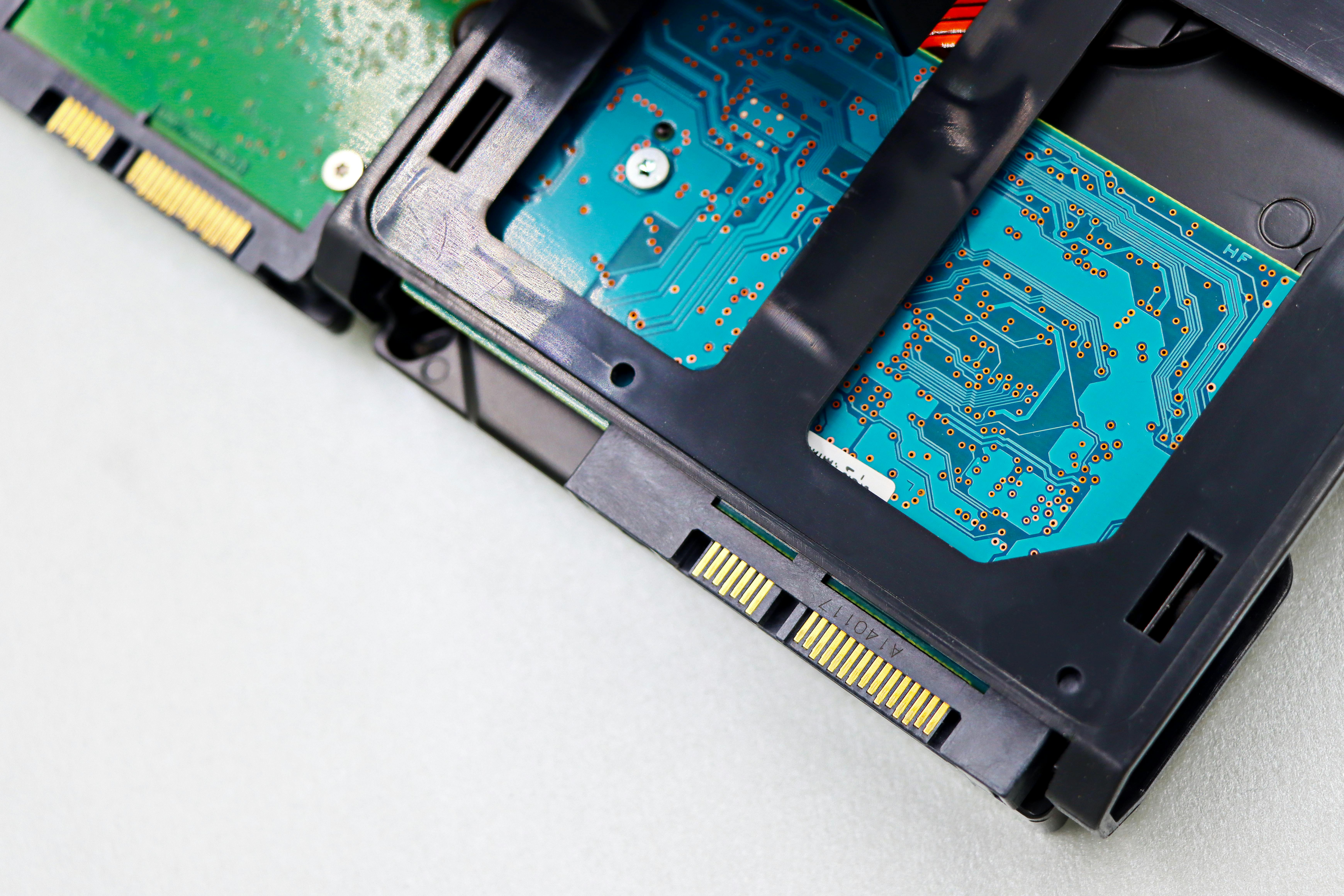
Drives in an SMB server are responsible for two parameters users feel most strongly: the speed of opening windows in an application and the duration of the nightly backup. Rarely does anyone ask about drives before buying - usually they appear in the specification as 2x SSD 480 GB and that is it. Yet the range of possible configurations is much broader.
Interface types
SATA - cheap, common, up to 6 Gb/s. SATA SSD and SATA HDD end up in most SMB servers. Good for file servers, archives, backups. Weak for SQL databases with a large number of parallel writes - SATA has a single command queue (NCQ up to 32), which can be a bottleneck for a database server.
SAS - 12 Gb/s in newer models, with Dual Port options on selected drives (two access paths for redundancy), better handling of many parallel operations than SATA. SAS Enterprise drives are built for 24/7 operation, have higher MTBF, and better error handling. For SQL databases and virtualization in SMB - a good standard.
NVMe - drives connected directly over PCIe, bypassing the SAS controller. Real 3-7 GB/s sequential read, hundreds of thousands of IOPS. For an ERP SQL database for 50 people in standard operation mode - overkill. For a WMS database with dozens of scanning stations running in parallel, for tempdb under heavy reports, or for the SQL transaction log under intensive writes - now a real gain. At one of our manufacturing clients, where weekends ended with warehouse reports taking hours, adding a pair of NVMe drives for tempdb reduced that time by roughly half. That was not the difference between working and not working, but between reports finishing at 3 AM and reports finishing before midnight. In another deployment, where the SQL load was mostly read-heavy with a small volume of writes, adding NVMe did not produce a practically noticeable difference. You have to measure, not guess. Enterprise NVMe with PLP is what you want in a server. Consumer NVMe drives (Samsung 980, WD Black) - not.
SSD vs HDD - the classic choice. SSD for anything where access time matters (system, databases, RDS, file server where people work on large CAD projects). HDD for archives, long-term backups, video repositories. In a typical SMB, all production disks today are SSD - HDD is used only for large backup volumes.
Configurations we recommend
File server / AD / small company (HPE MicroServer with 4 LFF bays, HPE DL20 Gen11 in a 4-6 SFF variant, Dell R260 or Lenovo SR250 V3): 2x Enterprise SATA SSDs in RAID 1 for the system + 2-4x SATA or SAS SSDs in RAID 10 for data. Capacity 480 GB - 4 TB.
ERP server in a small or medium-sized company (HPE DL360 Gen11 up to 8 SFF, Dell PowerEdge R450/R650 up to 8 SFF): 2x SAS SSDs in RAID 1 for the system + 6x SAS SSDs in RAID 10 for databases + optionally 2x NVMe drives for SQL Server tempdb if the database is actively loaded.
File server / archive for a medium-sized company (HPE DL380 Gen11 up to 12 LFF, Dell R750 up to 12 LFF): 2x SSDs for the system in RAID 1 + RAID 6 with 8-10 Enterprise SAS HDDs, optionally SSD cache on the RAID controller.
Enterprise drives vs desktop drives
Putting Samsung 870 Evo or WD Blue drives into a production server is asking for trouble. These drives are great for laptops and workstations. In a server they do not belong for three specific reasons.
First, there is no PLP (Power Loss Protection - capacitors on the drive itself that complete the write in progress during a sudden power loss). The first voltage drop during a write and your database may simply disappear in a partially written state. Enterprise drives have PLP built in.
Second, low DWPD (Drive Writes Per Day - how many times per day you can write the entire drive capacity over 5 years of warranty). Consumer SSDs usually have 0.3 DWPD. Enterprise read-intensive drives have 1 DWPD, mixed-use 3 DWPD, write-intensive 10+ DWPD. An ERP database in a medium-sized company can consume the yearly write budget of a consumer drive in a single week.
Third, the manufacturer warranty does not cover continuous 24/7 operation. After a drive failure that should never have been in a server in the first place, you will not only fail to get a warranty replacement - you will also have a problem because this violates the platform service terms.
Enterprise drives from the server manufacturer (HPE, Dell, Lenovo - so-called branded drives certified for a given platform) or from other enterprise lines (Kingston DC, Micron 5400 PRO/MAX, Samsung PM983/PM1733) cost 2-3x more. Saving 500-1000 PLN on an enterprise drive is the most expensive shortcut you can take in a server room.
RAID controller and levels
The RAID controller divides servers into two classes. The first has a software controller integrated into the board chipset (for example Intel VROC, a common solution in microservers) - cheaper, but it loads the CPU and has no write-back cache. For a file server in a micro business, that is enough. For a SQL database - a problem.
The second class is a hardware controller with dedicated 2-8 GB cache memory and a battery or capacitor that keeps the cache alive in the event of power loss (BBU or Flash Cache Module - typical models are HPE Smart Array P408i/P416ie, Broadcom MegaRAID 9560). Write-back cache really speeds up SQL databases and virtualization - the performance difference between these classes for database workloads is dramatic.
RAID levels for SMB
In SMB, we most often use 2x RAID 1 for the system (optionally with BOSS/M.2) plus RAID 10 for application and database data. Simple, efficient, predictable to rebuild. 90% of the servers we configure with a hardware controller end up in this setup.
Why do we rarely choose RAID 5? Because with today’s drive capacities - 4 TB, 8 TB, 16 TB - the rebuild time of a RAID 5 array after a failure can be counted in days. For those days the array runs in degraded mode, every read loads the remaining drives, and the risk of a second drive failing during the rebuild becomes a real threat to all data. For 4-8 TB SAS drives, rebuilds can take 24-72 hours - these are hours during which the entire health of the array hangs on drives that have already spent years working in the same dust and temperature as the one that just failed.
When does RAID 5 make sense? For small SSD arrays (3-4 drives) as a less critical volume - SSD rebuilds are much faster than HDD rebuilds (fewer hours, less mechanical stress), and the capacity loss (one drive out of N) can be economically significant. We also deliberately use RAID 5 where every gigabyte of capacity matters and we have an up-to-date, verified backup outside the machine. For production SQL databases and virtualization in SMB - we still stick with RAID 10.
RAID 6 (two parity drives) makes sense for larger archival HDD arrays - 8-12 drives, tolerates two simultaneous drive failures. For SQL databases and virtualization - a poor performance choice, because each write requires calculating two parities per block.
RAID 1 (mirror, 2 drives) remains for the system and small volumes - simple, fast, rebuilds in an hour. RAID 10 (mirror + stripe, 4+ drives) - the best performance/resilience compromise for SQL databases and virtualization, but you lose 50% of the capacity. That is the price you pay for not worrying about rebuilds.
And what about ZFS and software-based solutions
A hardware RAID controller is not the only sensible path. In some deployments we use ZFS - a file system with built-in data integrity protection (checksums for every block, automatic detection and repair of silent data corruption - the so-called bit rot), its own RAID-Z mechanisms, snapshots, and replication. For file servers, backup hosts, and some Linux- or TrueNAS-based virtualization deployments, it is often a better choice than a classic hardware controller. We wrote about this separately in the article ZFS - the file system that protects your data better than anything else.
The choice between hardware RAID and ZFS depends on the operating system (Windows Server almost always goes with hardware RAID, Linux/TrueNAS/Proxmox - ZFS), application requirements (SQL Server on Windows prefers a hardware controller with BBU), and the skills of the support team.
Power supplies - N+1 redundancy
Power supplies fail rarely. But when they do fail and you have only one, the company stops. That is why two power supplies are standard for us, not an extra option - if only because a single PSU failure in the middle of the workday means not only unplanned downtime, but also an unplanned explanation to the production manager or the board about why the server is down.
N+1 redundancy means two hot-plug power supplies, each capable of powering the entire server on its own. One fails, the other takes over the load. A technician replaces the faulty one without shutting down the machine. Users do not even know anything happened.
The second argument for redundancy: you plug the two power supplies into two different power strips (ideally into two different circuits - one powered by a UPS, the other from the mains or from a second UPS). If a power strip fails, if someone accidentally pulls the plug, if a maintenance worker replaces an outlet - the server keeps running.
HPE MicroServer has one external 180W power supply and does not support redundancy - that is its limitation. If you buy a MicroServer, plan for a UPS and accept the fact that a power supply failure means several hours of unavailability until replacement. For a branch office - acceptable. For the main machine at headquarters - not acceptable.
HPE ProLiant DL20 Gen11 offers the option of redundant 290W or 500W power supplies (Hot Plug Redundant Power Supply). This option usually adds 300-500 PLN to the server price, but it really improves availability - choose it whenever the server is critical to company operations.
Network card - is 1 GbE enough?
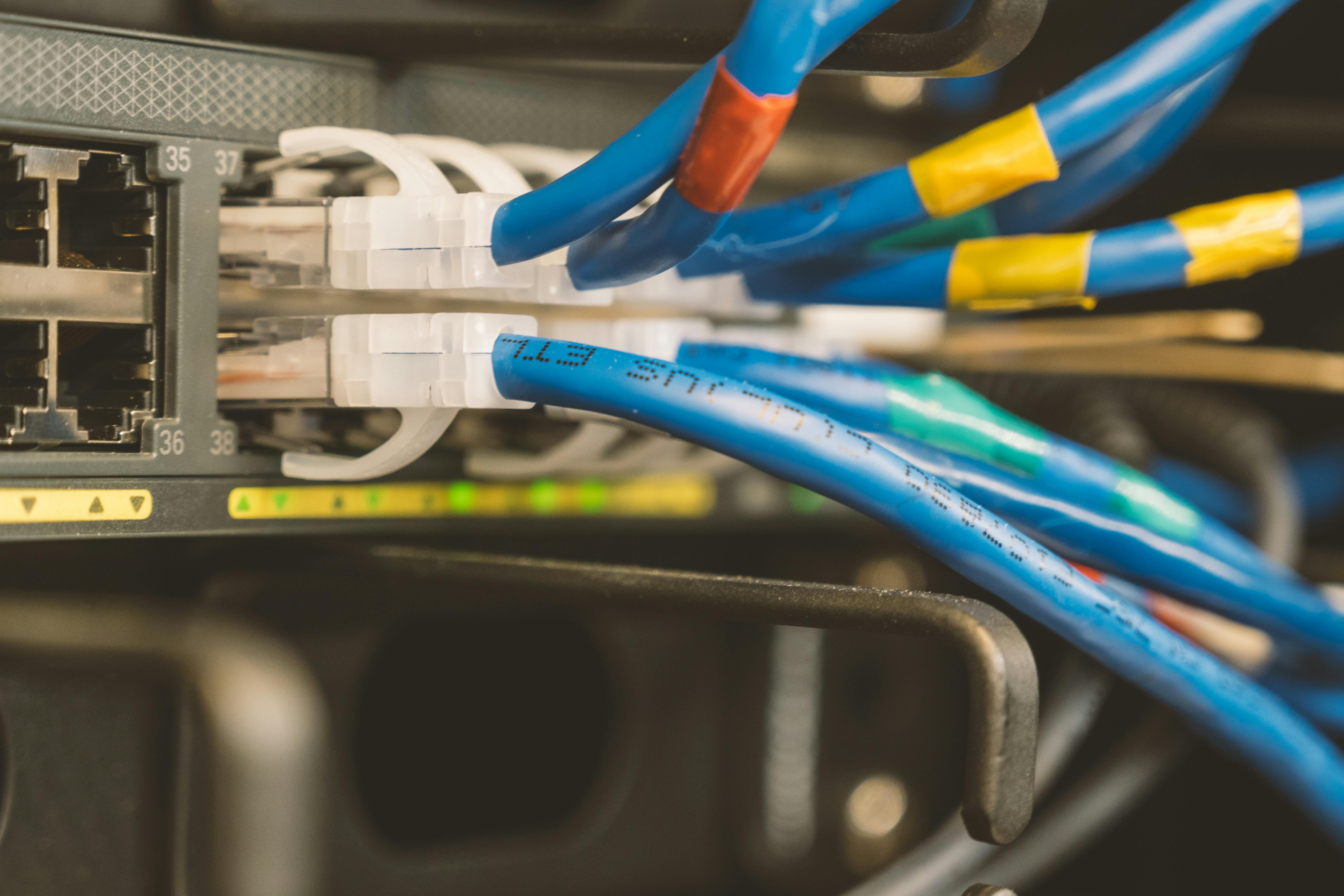
The standard in SMB servers is two 1 GbE ports built into the board (Embedded LOM or OCP). For a server acting as a file server, Active Directory, or Wi-Fi controller in a micro business - that is enough. For a machine that must handle a 500 GB evening backup in a 4-hour window or SQL replica synchronization between two servers - 1 GbE is already a bottleneck (realistically 100-110 MB/s).
When 10 GbE
Buy a 10 GbE card when:
The nightly backup exceeds 200 GB and starts at 10 PM, while the first employees log in at 6 AM - it has to fit.
You have a second server (spare, replica, cluster) that communicates with the first one - SQL Server replication, Veeam Direct SAN backup, Hyper-V replication.
The file server serves graphics studios, CAD, or video - individual files in the gigabyte range, a dozen workstations in parallel.
10 GbE also requires a 10 GbE switch and SFP+ or Cat 6A cables. That is an additional network-side cost, so treat it as an investment in the layer, not just in the server.
LACP and teaming
Two 1 GbE ports with LACP (Link Aggregation) theoretically give 2 Gb/s, but in practice not as much as everyone thinks - LACP distributes traffic by a MAC/IP hash, so a single stream (one copy session) goes through one port. Teaming is sensible for redundancy (one port fails, the other takes over), but do not treat it as a substitute for 10 GbE.
Remote management - iLO, iDRAC, XClarity
This is one of the parameters that most clearly shows whether someone is selecting a server on the expensive side or on the cheap side that will start hurting later.
Every enterprise server has a remote management card - HPE Integrated Lights-Out (iLO), Dell iDRAC, Lenovo XClarity Controller. The card has its own chip, its own IP address, its own network interface, and works even when the server is powered off. It allows you to:
Turn the server on and off remotely.
See the POST screen and the system console (Virtual Console - as if you were sitting at the machine with a KVM monitor).
Mount an ISO image remotely and install the system from it (Virtual Media).
Read hardware logs, temperatures, ECC errors, disk status.
Notify by email or SNMP that something is happening.
For a company using IT outsourcing, this is the basic tool for remote diagnostics. Without iLO/iDRAC, every night-time failure means someone has to go onsite. With iLO/iDRAC, the administrator logs in from home, reboots the machine, checks what happened, and reports in the morning. Difference in repair time: a dozen minutes instead of several hours.
A short digression, because it is important for understanding why we insist on iLO Advanced at purchase time. Anyone who remembers servicing servers from a dozen or so years ago will appreciate it. The standard was driving to the server room at 3 AM with a monitor, keyboard, a bootable Linux flash drive just in case - and coffee from a gas station vending machine, because the server room was never in a convenient place. Full iLO/iDRAC changed this work beyond recognition. Today you do the same diagnostics from home, in fifteen minutes, without putting on pants. It looks like a small add-on in the specification, but in practice it determines how much the company really loses on after-hours failures. Enough digression, back to the parameters.
iLO Standard vs Advanced
HPE offers iLO in two variants. iLO Standard (free license, included with the server) gives monitoring, power management, and log access. iLO Advanced (paid license, added at purchase or bought separately) adds full Virtual Console and Virtual Media - exactly what you need for remote work.
Our recommendation is always choose iLO Advanced when buying a server. With a new server, the license costs a fraction of the price; bought after the fact, it is 2-3x more expensive. Dell iDRAC has an analogous split into Basic, Express, and Enterprise - here too, choose the Enterprise variant.
In HPE MicroServer there is a stripped-down version of iLO 5 - not full iLO Advanced, only basic remote access. That is acceptable for a branch machine, but it is good to know this before buying.
Warranty and manufacturer support
A server is hardware that is supposed to work for 5-7 years. The standard HPE warranty for ProLiants is 3 years, NBD (Next Business Day) - if the server fails on Monday at 2 PM, parts arrive on Tuesday. For a micro business that is often enough - for a company where a server stoppage means real money, NBD can be too slow.
Packages to look at
HPE Tech Care Basic / Essential / Critical - warranty extensions to 4-5 years with response times of NBD / 4h / 24x7 respectively. Critical can be excessive for SMBs, Essential (4h on-site, 24x7) is a sensible choice for a critical machine.
Dell ProSupport / ProSupport Plus - analogous Dell-side support, with a 4h Mission Critical option.
Defective Media Retention (DMR) - the keep-the-failed-drive option. By default, drives replaced under warranty are returned to the manufacturer. DMR is an option to consider if you process sensitive data (personal data, medical documentation, financial data) and do not want the drive to leave the company, even in a failed state.
What is not a warranty
The manufacturer warranty is not the service agreement of your IT provider. The manufacturer will come with the part - someone has to install that part, update the firmware, check the array, and bring the server back online. That is done by your IT team or an external partner. In the IT support model in which we work with clients, these tasks are included in the subscription - at Helpwise IT, batteries are included, and a technician visit after a hardware failure is not a separate invoice.
HPE MicroServer and HPE DL20 (and Dell and Lenovo equivalents) - for smaller companies and branches
Two HPE models we most often buy for clients in situations where a full-size 1U/2U server is too large, and a regular office PC does not meet server requirements. In competitors' offers, they are matched by Dell PowerEdge R260 / R360 (1U, one Xeon E socket - a direct equivalent of DL20) and Lenovo ThinkSystem SR250 V3 / ST250 V3 (1U rack or tower, also one Xeon E socket). In terms of machine class and parameters, these three lines play in the same league - the choice comes down to the distributor's pricing policy, the maturity of management tools (iLO vs iDRAC vs XClarity), and parts availability in Poland.
HPE ProLiant MicroServer
Small machine, mini-tower form factor, typically single-processor (Intel Xeon E-2300 or Pentium Gold), 4 ECC UDIMM slots up to 64 GB, 4 LFF drive bays (non-hot-plug), external 180W power supply, one 1 GbE port, and optionally a PCIe NIC card.
What it makes sense for:
Branch office - one machine for 5-15 people, file server + AD + Wi-Fi controller + local backup. Quiet, low-profile, easy to fit into an office rack.
Micro business - as the only server for a 5-10-person company with light ERP (Optima, Symfonia) and Płatnik.
Machine for special purposes - monitoring host, backup target, test server.
What not to expect: power supply redundancy, hot-plug drives, full iLO Advanced, two sockets, large RAM capacities (64 GB limit). You accept these limitations in exchange for price and size.
HPE ProLiant DL20 Gen11
1U rack, one socket (Intel Xeon E-2400 series or Pentium for economical variants), 4 DDR5 ECC UDIMM slots up to 128 GB, 2-6 SFF SSD/HDD drives, optional redundant 290W or 500W power supply, iLO 6 standard (with Advanced option).
What it makes sense for:
Main server in a small company of 15-40 people with ERP, RDS for 5-10 people, AD, file server. With 64-128 GB RAM, 4-6 SSDs in RAID 10, and a redundant power supply - a solid base.
Second server in a larger company - backup DC, backup host, development environment host.
Branch office with higher requirements than MicroServer - where PSU redundancy and rack presence matter.
DL20 Gen11 vs MicroServer - DL20 has full iLO 6 with an Advanced option (you buy a license), redundant power supplies (optional, but available), and a rack chassis. MicroServer has a lower entry price, a smaller enclosure, and that is it. For a branch office with a small budget, MicroServer; for the main machine of a small company - DL20.
Table: our cheat sheet, which we use to start client discussions
The table below is a summary we ourselves use as a starting point in discussions. In a real project we always configure the details with the client - an accounting company looks different from a manufacturing plant - but you have to start somewhere:
Company profile | Use cases | Recommended model | CPU | RAM | Drives | Network | PSU |
|---|---|---|---|---|---|---|---|
Branch 5-15 people | File server, AD, printer, local backup | HPE MicroServer | Xeon E-2314 / 2336 (4-6 cores, 2.8-3.4 GHz) | 32-64 GB ECC UDIMM | 2x Enterprise SATA SSD 480 GB RAID 1 + 2x HDD 4 TB | 1x built-in 1 GbE | 1x 180W (no redundancy) |
Micro business 10-20 people | File server, AD, Płatnik, Optima/Symfonia, RDS for 3-5 people | HPE ProLiant DL20 Gen11 | Xeon E-2434 / 2436 (4-6 cores, 3.4-4.1 GHz) | 64 GB ECC UDIMM | 2x Enterprise SATA SSD 480 GB RAID 1 + 2x SATA SSD 1.92 TB RAID 1 | 2x built-in 1 GbE | 2x 290W redundant |
Small company 20-50 people | File server, AD, ERP (enova/Optima) with SQL Standard, RDS for 10-15 people, backup | HPE ProLiant DL20 Gen11 or DL360 Gen11 | Xeon E-2486 (6 cores, 3.5 GHz) or Xeon Silver 4410Y | 96-128 GB ECC | 2x SAS SSD RAID 1 + 4-6x SAS SSD RAID 10 | 2x 10 GbE OCP | 2x 500W redundant |
Medium-sized company 50-150 people | ERP with database >50 GB, WMS, RDS for 20+, file server, monitoring | HPE ProLiant DL360 Gen11 (or 2x cluster) | Xeon Gold 5415+ (8 cores, 3.2 GHz) or 6434 (8 cores, 3.7 GHz) | 192-256 GB ECC RDIMM | 2x SAS SSD RAID 1 + 6-8x SAS SSD RAID 10 + optionally NVMe for tempdb | 2x 10 GbE + 2x 1 GbE management | 2x 800W redundant |
Manufacturing company 30-100 people | ERP + MES + WMS + 24/7 integrations | 2x HPE ProLiant DL360 Gen11 (main + replica for disaster recovery) | Xeon Gold 6434 (8 cores, 3.7 GHz) | 128-192 GB ECC | 2x SAS SSD RAID 1 + 6x SAS SSD RAID 10 + 2x NVMe RAID 1 for tempdb/log SQL | 2x 10 GbE + iLO management | 2x 800W redundant |
The table is a starting point, not the final configuration. Real selection requires a conversation about specific workloads, planned growth, backup policy, and the service window.
The most common questions about server selection for small and medium-sized companies
When to discuss server selection with someone outside the company
Choosing a server for 5 years is not a decision you settle in an hour with an email quote from one vendor. If you recognize any of these symptoms:
The current server is over 5 years old and warranty packages expire this year.
The ERP is starting to run slowly, RDS sessions drop in the afternoon, and users report that the system is slow.
You are buying your first server and do not want to repeat the mistakes of the setup someone recommended to you first.
You are opening a branch and need a local machine for 5-15 people.
The nightly backup over 1 GbE is starting not to fit within the service window.
These are the moments when it is worth stopping and asking: what should the server do, for how long, with what workload growth, and under what support model. At Helpwise IT, we have been doing this with clients since 2000 - from the IT outsourcing perspective we can see how a configuration bought today performs in 4 years, when the company grows by 30% and the ERP database doubles. If you want to discuss a specific server selection for your company, write to us - we talk about real workloads, not catalog-sheet specifications.